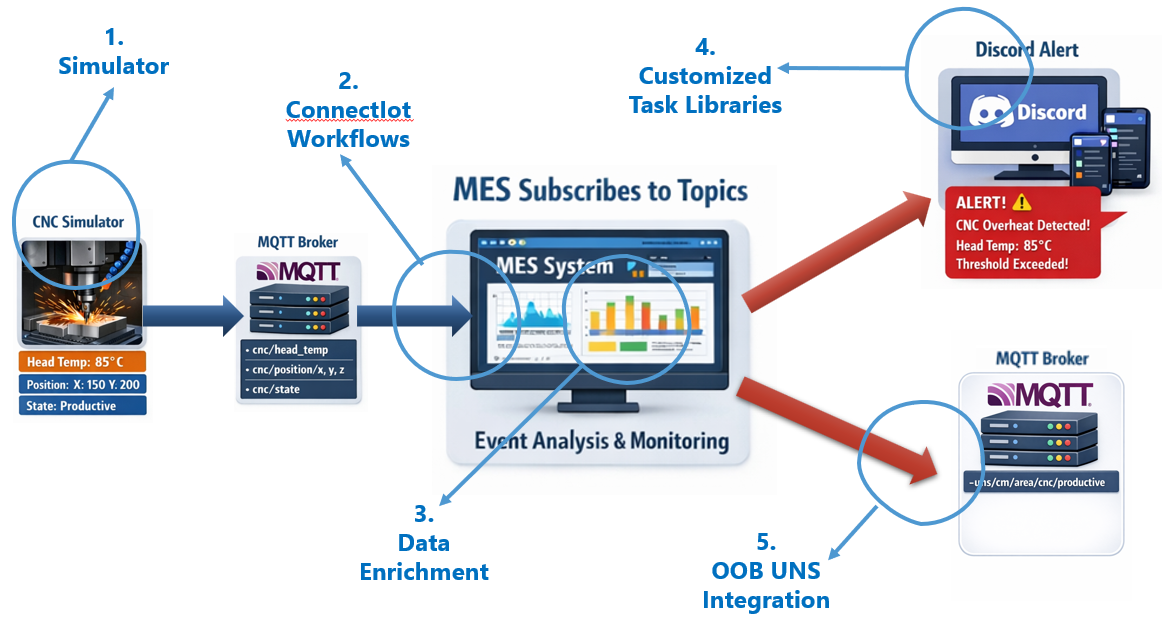
In this blog post, we’ll use a simulator developed with the IoT Test Orchestrator to feed a pipeline with equipment data collected via MQTT and transform that data into UNS (Unified Namespace) topics.
But wait… why do we need MES in this pipeline at all? Some might argue that tools like Node-RED or n8n are enough to build this kind of integration pipelines.
Suppose we want to generate Equipment State topics and publish them to MQTT as UNS topic.
The construction of UNS topics follows a set of rules. A UNS topic has a structure aligned with ISA‑95: Facility → Site → Area → Resource → Event. From there, it can be enriched with additional information relevant to the event being observed.
In simple scenarios like the one under analysis, the complementary information could be retrieved from an external source, such as a centralized equipment database maintained by an EAM - Enterprise Asset Management system for example.
But imagine the event you want to publish is a TrackIn. How do you enrich the raw data coming from the equipment? That contextual layer is precisely what MES provides. Pulling all this context into an external pipeline like Node‑RED is certainly possible — but at some point, it becomes counter‑productive.
A more straightforward and robust approach is to bring the flow of information into MES and let the Data Platform pipelines naturally enrich it:
The equipment state‑model change along with other common shop-floor operations are core IoT Events in MES, and they already carry rich contextual information that can directly support UNS requirements and any additional needs.
For more advanced scenarios, MES can be extended — for example, sending an alert whenever a machine parameter is out of the control limits.
So, let’s unfold this journey from MQTT to UNS topics in the next sections and take a few stops along the way to admire what we will earn in the voyage.
Introduction
We’ll start by demoing how to design a simple simulator with behavior closer to real equipment, capable of generating MQTT topics. Then we’ll define the ConnectIoT workflows to capture and observe how information naturally flows through MES while being enriched. Finally, we’ll explore how MES out-of-the-box functionality generates the corresponding UNS topics. Of course, we’ll also demonstrate extensibility through our Discord integration.
MQTT Simulator
The same plugin used in the test orchestrator can be used to simulate our MQTT Broker in a simple .NET project. This can be easily achieved with a few steps.
Let’s start from the beginning, step by step.
Create a directory to hold your project and initialize a .NET console application.
dotnet new console -n MQTTSimulator
This will create the scaffolding for your project.
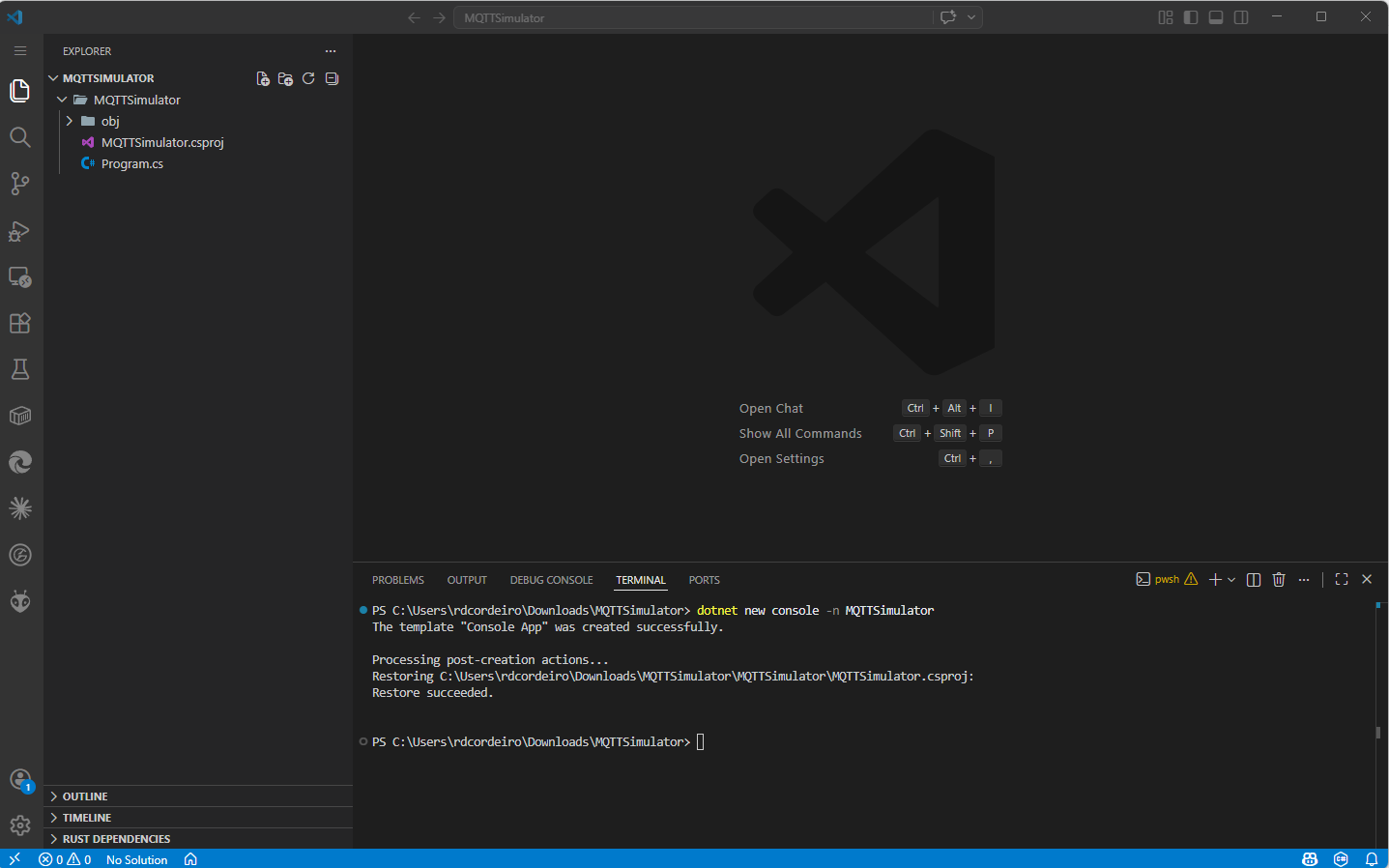
To fetch the MQTT plugin from CM repository, configure the nuget.config:
<?xml version="1.0" encoding="utf-8"?>
<configuration>
  <packageSources>
    <add key="CMF" value="https://criticalmanufacturing.io/repository/nuget-hosted/index.json" protocolVersion="3" />
    <add key="nuget.org" value="https://api.nuget.org/v3/index.json" protocolVersion="3" />
  </packageSources>
  <disabledPackageSources />
  <solution>
    <add key="disableSourceControlIntegration" value="true" />
  </solution>
</configuration>
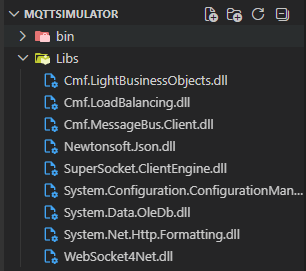
Copy all the libraries needed to our simulator to the libs directory:
In the project MQTTSimulator.csproj, include all the packages we need for our simulator:
<Project Sdk="Microsoft.NET.Sdk">

  <PropertyGroup>
    <OutputType>Exe</OutputType>
    <TargetFramework>net9.0</TargetFramework>
    <ImplicitUsings>enable</ImplicitUsings>
    <Nullable>enable</Nullable>
  </PropertyGroup>

  <ItemGroup>
    <PackageReference Include="Cmf.ConnectIoT.TestOrchestrator.Core.Common" Version="11.2.0-alpha24" />
    <PackageReference Include="Cmf.ConnectIoT.TestOrchestrator.Core.ScenarioBuilder"
      Version="11.2.0-alpha09" />
    <PackageReference Include="Cmf.ConnectIoT.TestOrchestrator.Plugin.Simulator.MQTT"
      Version="11.2.0-alpha08" />
    <PackageReference Include="Cmf.ConnectIoT.TestOrchestrator.Plugin.StartMode.Local"
      Version="11.2.0-alpha10" />
  </ItemGroup>

  <ItemGroup>
    <Reference Include="Cmf.LightBusinessObjects">
      <HintPath>Libs\Cmf.LightBusinessObjects.dll</HintPath>
    </Reference>
    <Reference Include="Cmf.LoadBalancing">
      <HintPath>Libs\Cmf.LoadBalancing.dll</HintPath>
    </Reference>
    <Reference Include="Cmf.MessageBus.Client">
      <HintPath>Libs\Cmf.MessageBus.Client.dll</HintPath>
    </Reference>
    <Reference Include="Newtonsoft.Json">
      <HintPath>Libs\Newtonsoft.Json.dll</HintPath>
    </Reference>
    <Reference Include="SuperSocket.ClientEngine">
      <HintPath>Libs\SuperSocket.ClientEngine.dll</HintPath>
    </Reference>
    <Reference Include="System.Configuration.ConfigurationManager">
      <HintPath>Libs\System.Configuration.ConfigurationManager.dll</HintPath>
    </Reference>
    <Reference Include="System.Data.OleDb">
      <HintPath>Libs\System.Data.OleDb.dll</HintPath>
    </Reference>
    <Reference Include="System.Net.Http.Formatting">
      <HintPath>Libs\System.Net.Http.Formatting.dll</HintPath>
    </Reference>
    <Reference Include="WebSocket4Net">
      <HintPath>Libs\WebSocket4Net.dll</HintPath>
    </Reference>
  </ItemGroup>

  <ItemGroup>
    <Folder Include="Objects\" />
  </ItemGroup>

</Project>
The first steps to design the Simulator are complete.
Next, the classe ScenarioRunner.cs will implement all the logic of our simulator:
using IoTTestOrchestrator;
using MQTT;
using MQTT.Plugin;
using ScenarioBuilder.Implementations.Configuration;
using System.Globalization;
using System.Text;
using System.Text.Json;
using System.Text.RegularExpressions;

namespace MQTTSimulator
{
    public class ScenarioRunner
    {
        private TestScenario? _scenario;

        public ScenarioRunner()
        {
        }

        public async System.Threading.Tasks.Task RunAsync(string[]? args = null)
        {
            var scenario = new ScenarioConfiguration()
                .WriteLogsTo("c:/temp/MQTT-Simulator.log")
                .ManagerId("MQTTManager")
                .ConfigPath("C:\\IOT\\AutomationManager\\AutomationManagerDemo\\config.full.json")
                .AddSimulatorPlugin<MQTT.PluginMain>(new SettingsBuilder()
                    .Address("localhost", 1883)
                    .StartBroker(true)
                    .Build());

            _scenario = new TestScenario(scenario);
            var context = _scenario.Context();
            MQTT.PluginMain? mqttSimulator = context.Simulators["MQTT"] as MQTT.PluginMain;
            using var cts = new CancellationTokenSource();
            try
            {
                _scenario.Start();
                _scenario.StartSimulators();
                Console.WriteLine("[CNC] Waiting for MQTT broker...");
                await WaitForMqttReadyAsync(mqttSimulator!, cts.Token);
                Console.WriteLine("[CNC] MQTT ready.");
                Console.WriteLine("Press 'q' to quit...");
                while (!cts.IsCancellationRequested)
                {
                    //Publish a simple topic
                    string topic = "test/topic";
                    string value = "Hello, MQTT! " + DateTime.Now.ToString("O", CultureInfo.InvariantCulture);
                    mqttSimulator!.Publish(topic, value);

                    if (Console.KeyAvailable)
                    {
                        var key = Console.ReadKey(true);
                        if (key.KeyChar == 'q')
                        {
                            cts.Cancel();
                        }
                    }
                    await Task.Delay(1000, cts.Token);
                }
            }
            catch (Exception ex)
            {
                Console.WriteLine($"[ERROR] {ex.Message}");
            }
            finally
            {
                _scenario.ShutdownSimulators();
                _scenario.Shutdown();
            }
        }

        private static async Task WaitForMqttReadyAsync(PluginMain mqtt, CancellationToken ct)
        {
            // Probe TCP port 1883 until the embedded broker is actually accepting connections,
            // then allow a short stabilisation window for the MQTT client to authenticate.
            while (!ct.IsCancellationRequested)
            {
                try
                {
                    using var tcp = new System.Net.Sockets.TcpClient();
                    await tcp.ConnectAsync("localhost", 1883, ct);
                    // Broker is listening — give the MQTT client time to finish its handshake.
                    await Task.Delay(800, ct);
                    return;
                }
                catch (OperationCanceledException) { throw; }
                catch
                {
                    await Task.Delay(200, ct);
                }
            }
        }
    }
}
In Program.cs run the Scenario.
namespace MQTTSimulator
{
    internal class Program
    {
        private static async Task Main(string[] args)
        {
            Console.WriteLine("Starting Scenario Run");
            await new ScenarioRunner().RunAsync(args);
            Console.WriteLine("Finished Scenario Run");

        }
    }
}
There are a few things I would like to highlight.
The Simulator implements an MQTT Broker using the plugin provided by the Test Orchestrator. It needs the config.full.json file from the Automation Manager connected to MES and the address and port where the Broker will be published. Unlike what is typically needed in a test scenario, the Broker should keep running until it is no longer necessary, so I use a simple console polling loop that keeps the process alive and terminates only when the Q key is pressed.
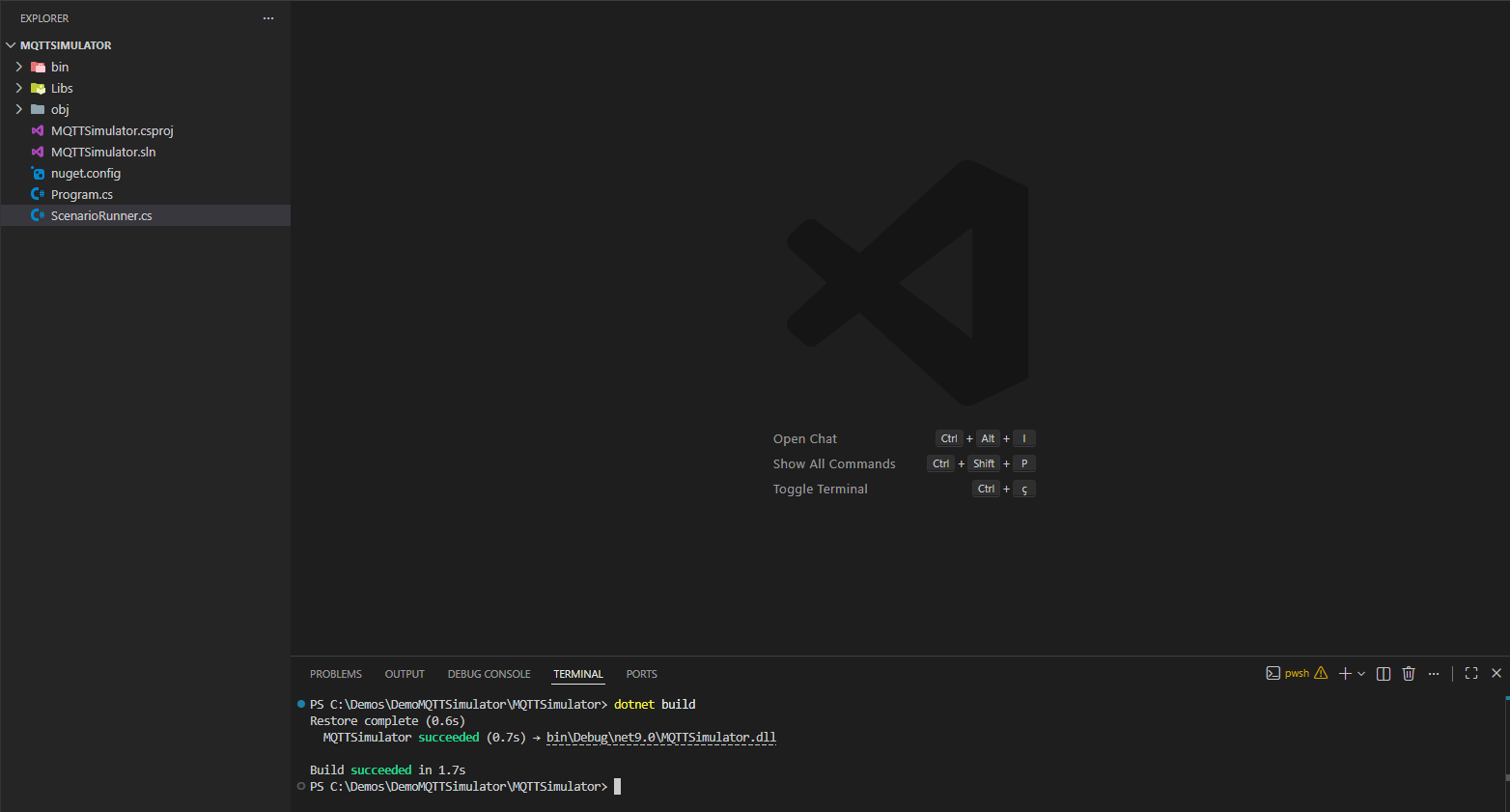
Finally, build the solution:
dotnet build
The project should be something like this:
To execute run the following command:
dotnet run
Using MQTT Explorer, we can connect to the MQTT Broker at localhost port 1883.
This is our Minimum Viable Project (MVP). But our challenge is to go further and implement additional functionality that brings us closer to the behavior of a real machine, like a CNC for example.
A vast amount of documentation exists on the internet explaining how a real CNC actually works, which you can reference. Or a simple prompt in your favorite LLM will do the trick too.
For our example, we’ve implemented the following functionalities in our CNC simulator:
- Loading a real G‑code file
- Interpolating the tool path and moving the CNC head according to the provided G‑code file
- Simulating the head temperature
- Starting the simulation with
S - Triggering an anomaly by pressing the
Akey - Quitting the simulation with
Q
ConnectIot Workflows
With our equipment simulated and pushing topics to our MQTT Broker, let’s continue our journey.
Now, we need to create a protocol that understands MQTT, with the address and port being the only things we need to configure:
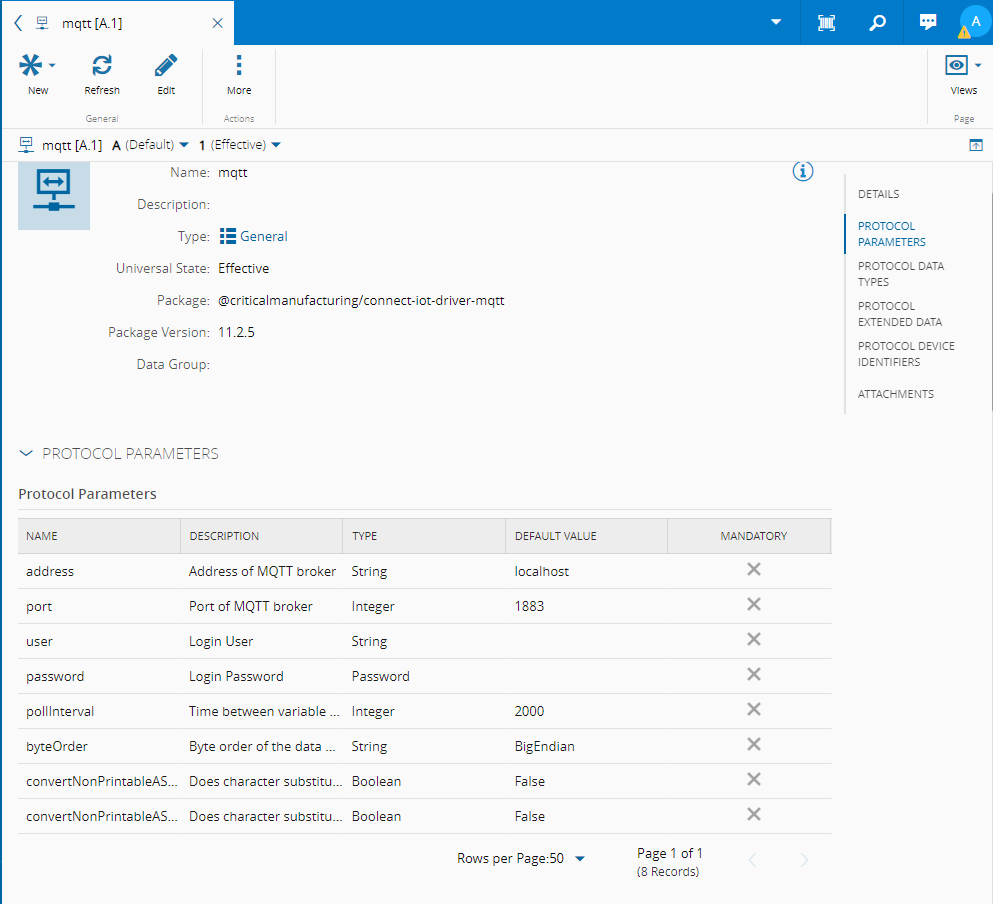
For the driver, 3 topics receive the values the equipment publish:
| Property | Topic |
|---|---|
temperature | cnc/head/temperature |
position | cnc/position |
state | cnc/state |
Also, 3 events will listen to detect when each topic changes:
| Event | Property |
|---|---|
position_change | position |
temperature_change | temperature |
state_change | state |
The driver looks like this:
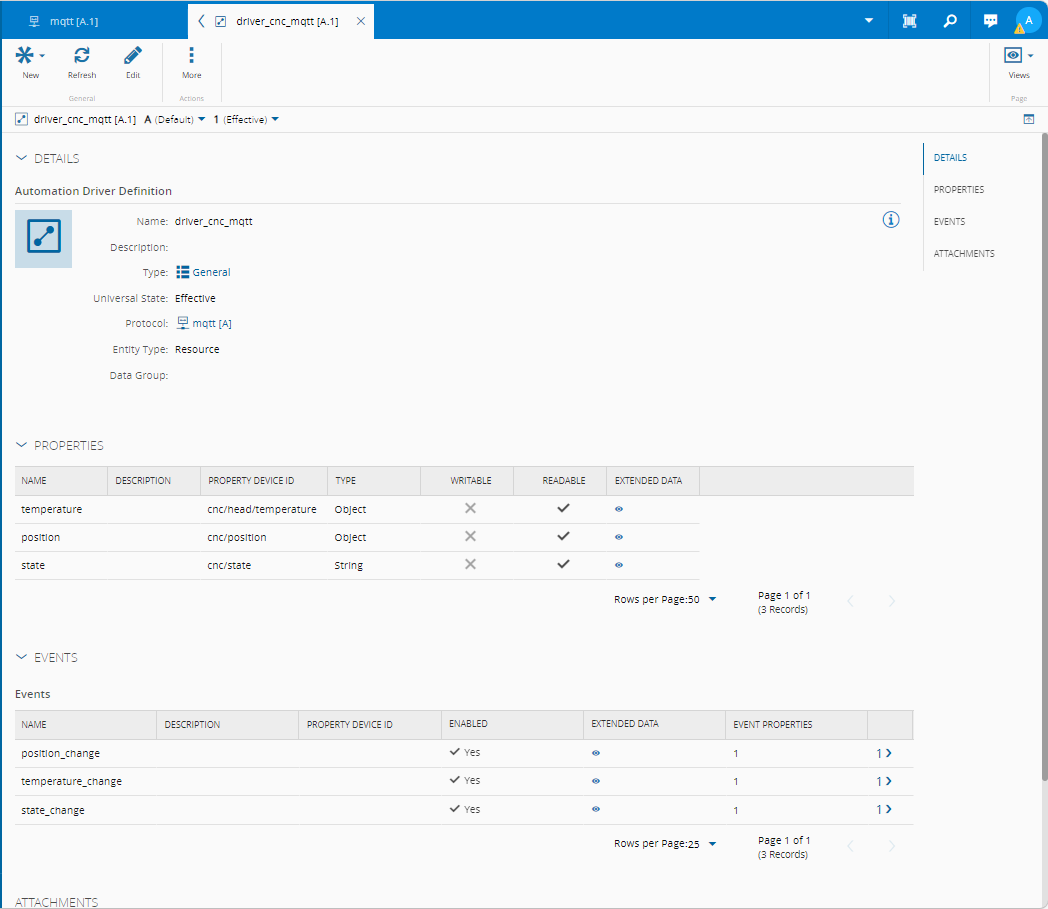
The controller responsible for handling the pipeline starts, as usual, with the setup phase.
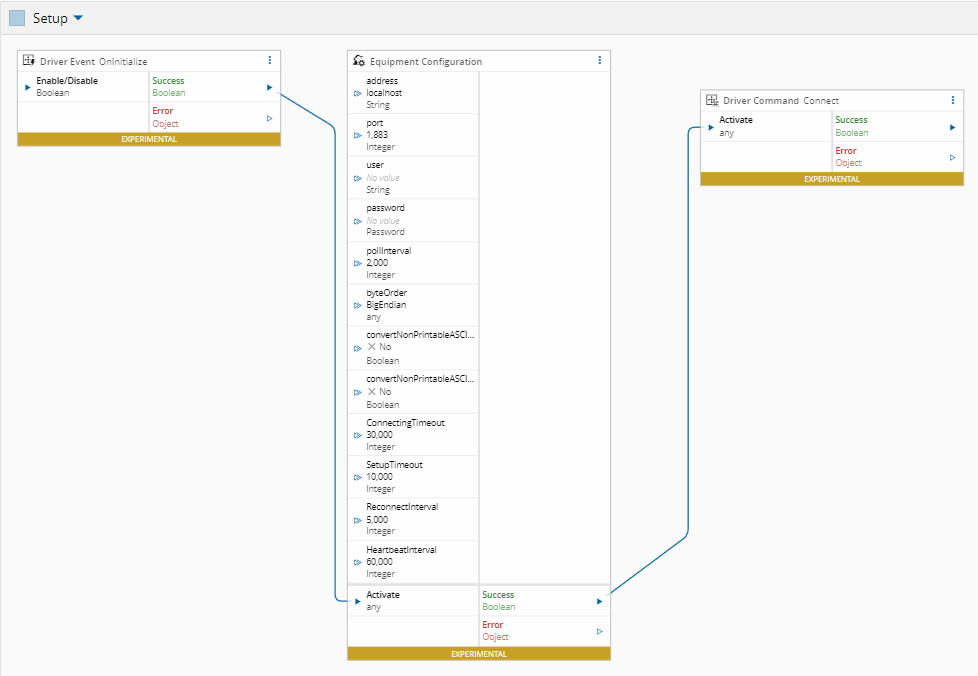
In our example, the address and port are already defined in the protocol itself, so there’s no need to configure them in the controller. In real‑world scenarios, however, it’s far more common to store all required parameters in a Configuration Entry and apply them during the OnSetup phase.
Temperature Event
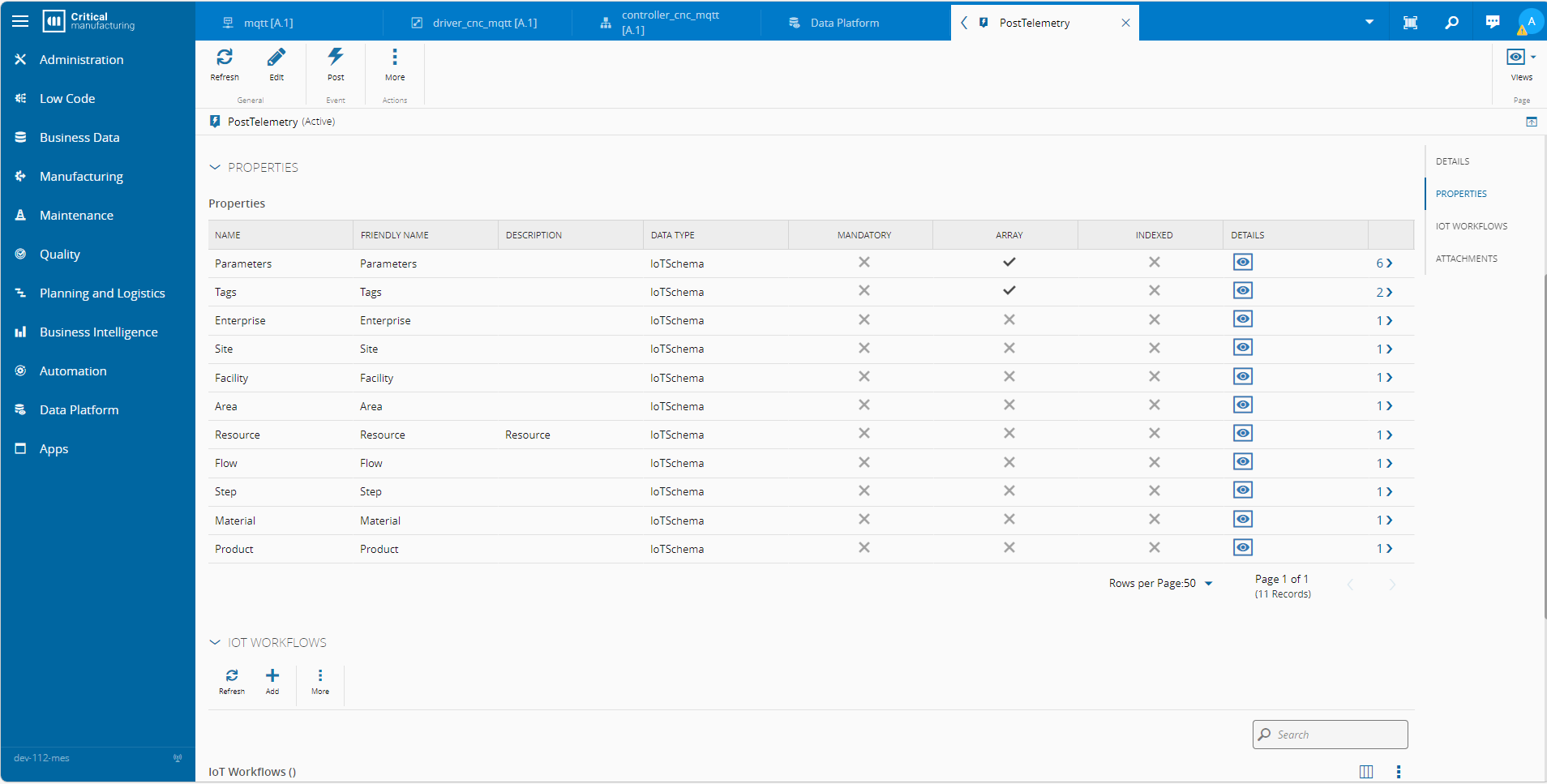
The first topic we will handle is temperature. For this type of data that is not directly related to any MES entities, MES provides the ability to collect data points using a special IoT Event called PostTelemetry, you can check all the APIs here.
Under the Data Platform area in MES, you can find all IoT Events implemented by MES, including the option to create new ones:
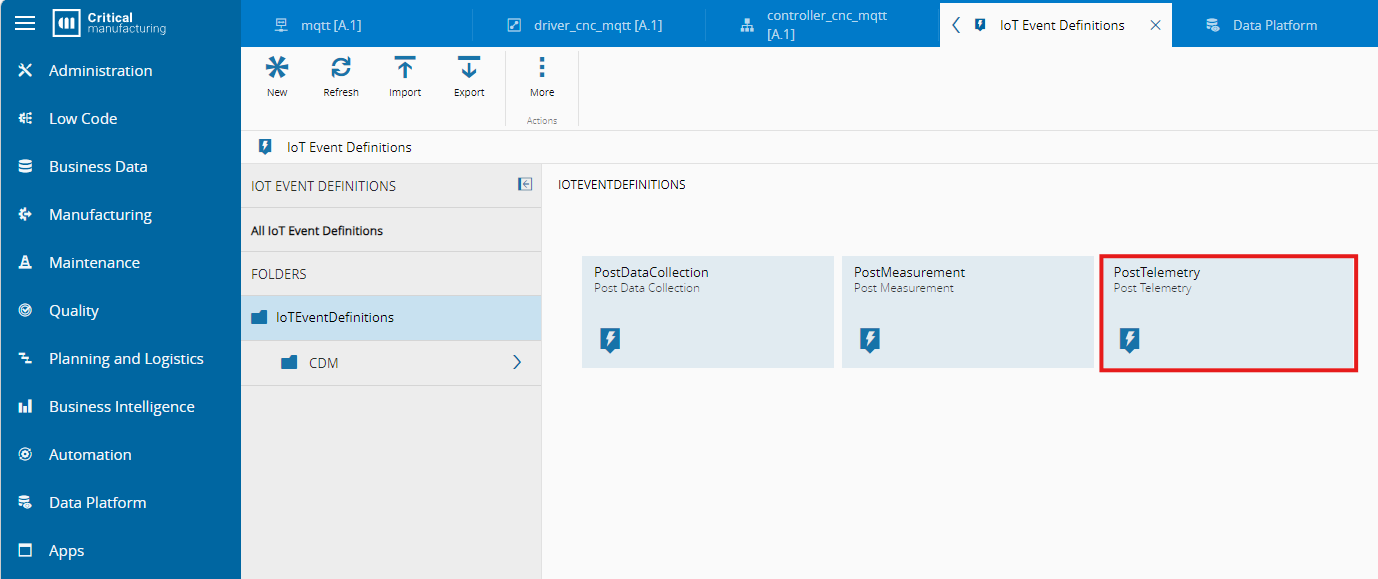
This PostTelemetry follows a standard format and is commonly used to ingest high‑cadence process parameters such as temperatures, vibration levels, speed, and other signals. These values are stored directly in the Data Platform for analytics, dashboards and to train Data Mining models for example.
The workflow is triggered by the temperature_change event and publishes the data using PostTelemetry.
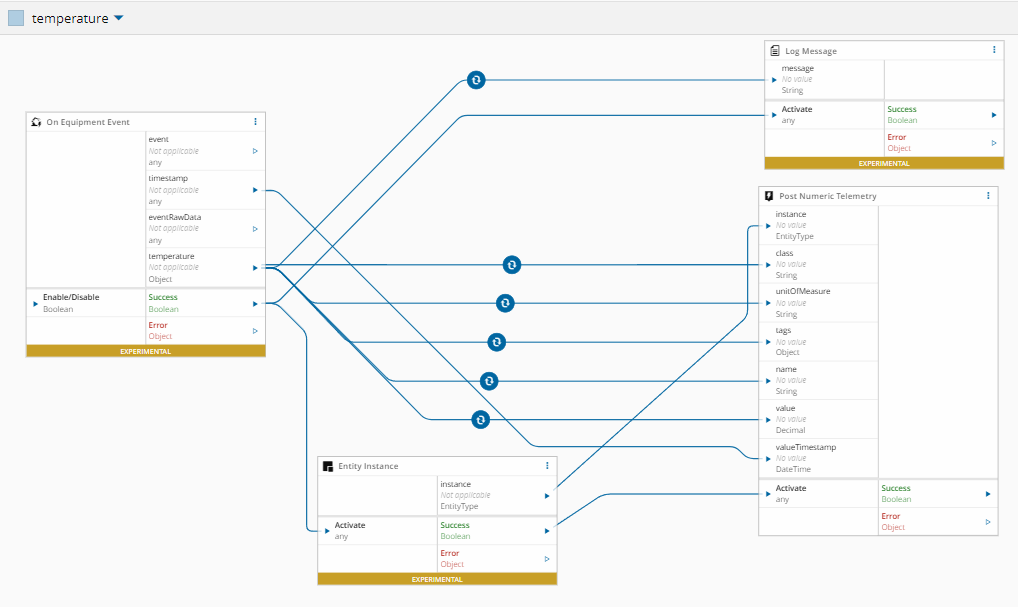
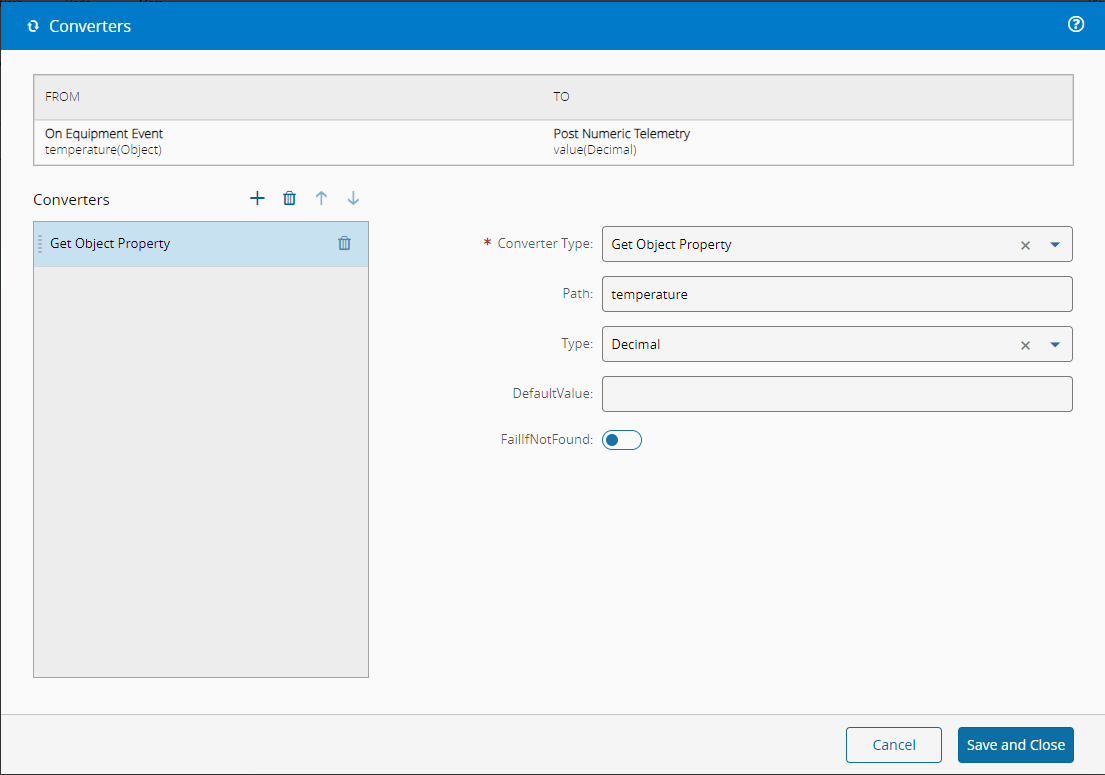
If you look closely, you’ll notice that a few additional transformations and enrichment were applied. The resource information is passed along and the temperature topic arrives as a JSON payload that includes several fields not relevant to our use case.
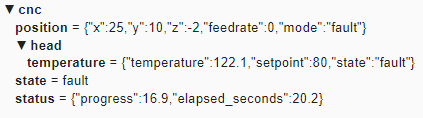
{"temperature": 80.5, "setpoint":80, "state":"at_temperature"}
To extract the temperature value, I used the Get Object Property
Status Event
The next ingestion we want to perform is the change of equipment status caused by an anomaly.
To simulate this event, pressing A in the simulator causes the equipment to gradually increase the temperature until it reaches the defined limit. This will trigger the Change of Status of the equipment and also a notification with a pop up, alerting that the machine has entered a fault state.
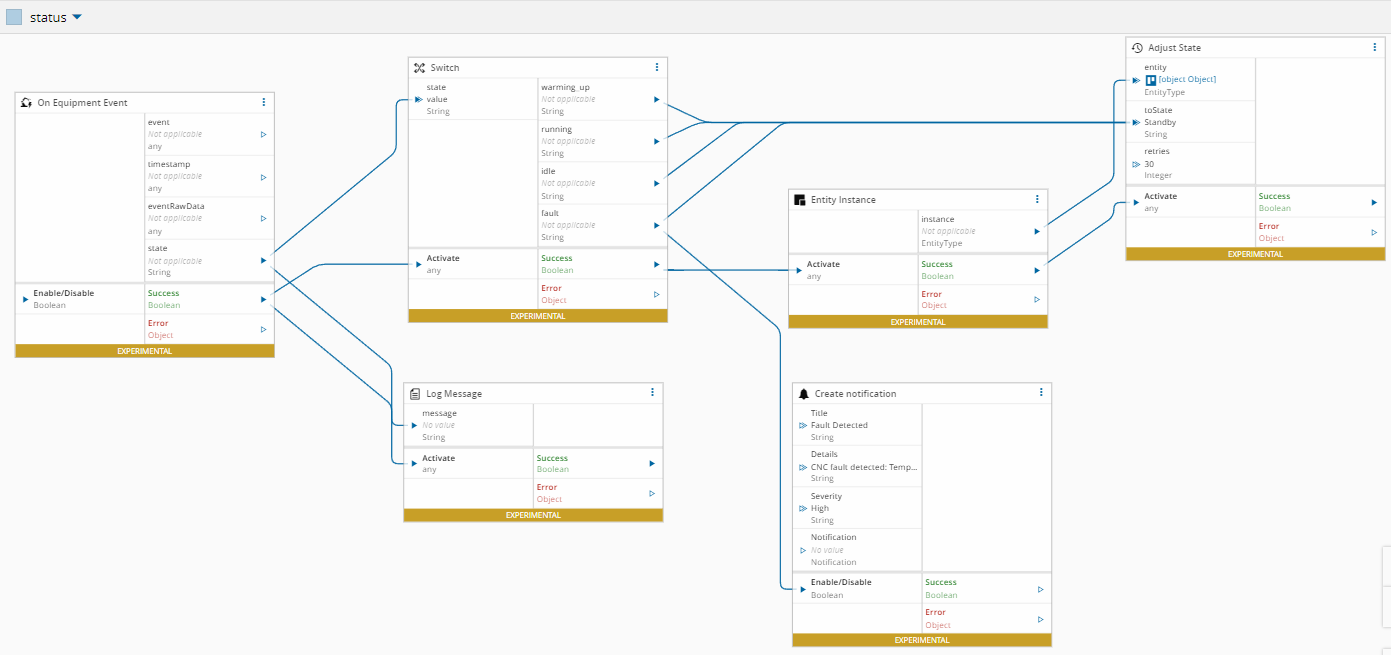
The status topic value is a string, so no further transformation is needed.
The status can assume also other values, depending on which phase the equipment is:
| State | Description |
|---|---|
idle | Equipment is stopped |
warming_up | Thermal stabilization in progress |
running | Active production cycle |
fault | Error condition detected |
Using the SEMI-E10 model the resource State will be adjusted accordingly:
| State | SEMI-E10 State |
|---|---|
idle | Standby |
warming_up | Engineering |
running | Productive |
fault | Nonscheduled |
Position Event
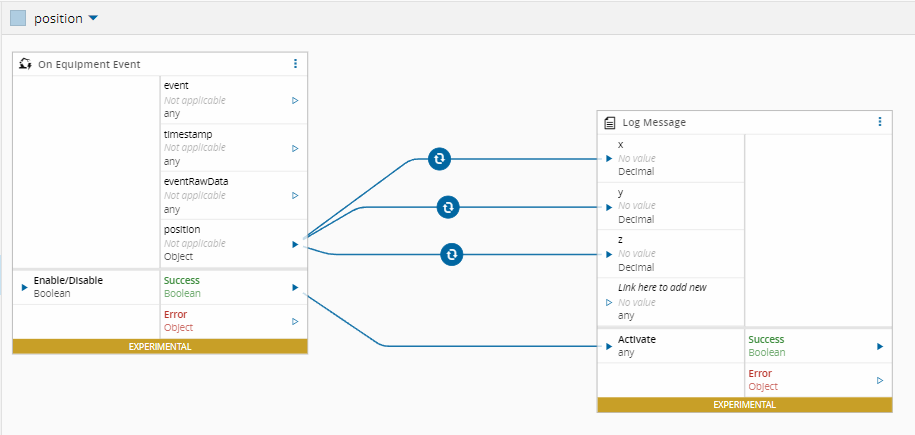
For the position_event, the topic is also an object, making a Get Object Property converter necessary to extract the correct information.
{"x":0,"y":0,"z":5,"feedrate":3000,"mode":"home"]
For demonstration purposes, this information is only dumped to the log.
Data Enrichment and Visualization
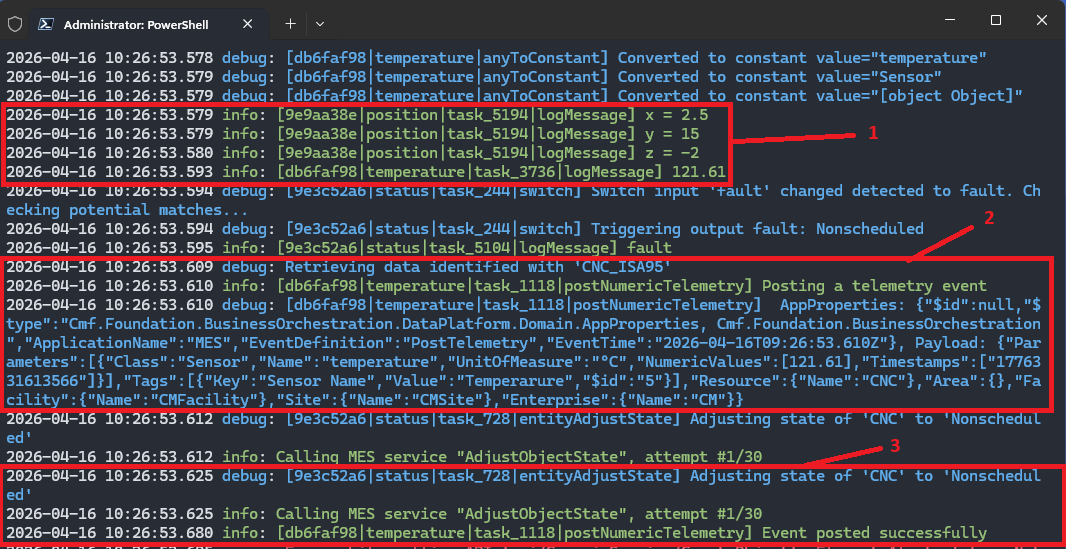
After instantiating the Controller in our Automation Manager we can start the simulator and observe MES ingesting the data:
The head’s coordinates were logged (1), the PostTelemetry event was successfully published to the Data Platform (2) and the anomaly behaved exactly as expected: the trigger fired, the corresponding event was raised, and the equipment transitioned into a Non‑Scheduled state (3).
But there are also other interesting things happening under the hood.
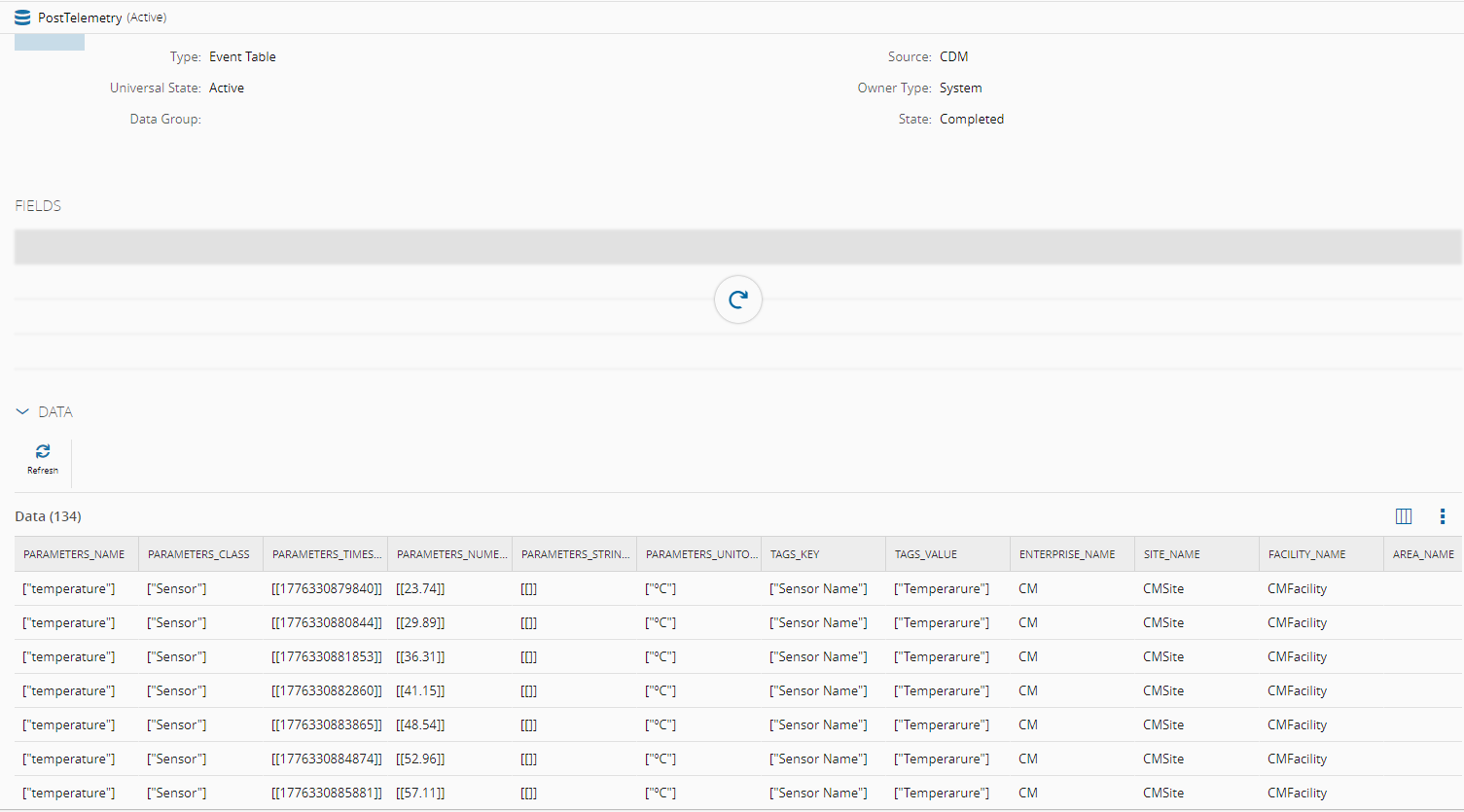
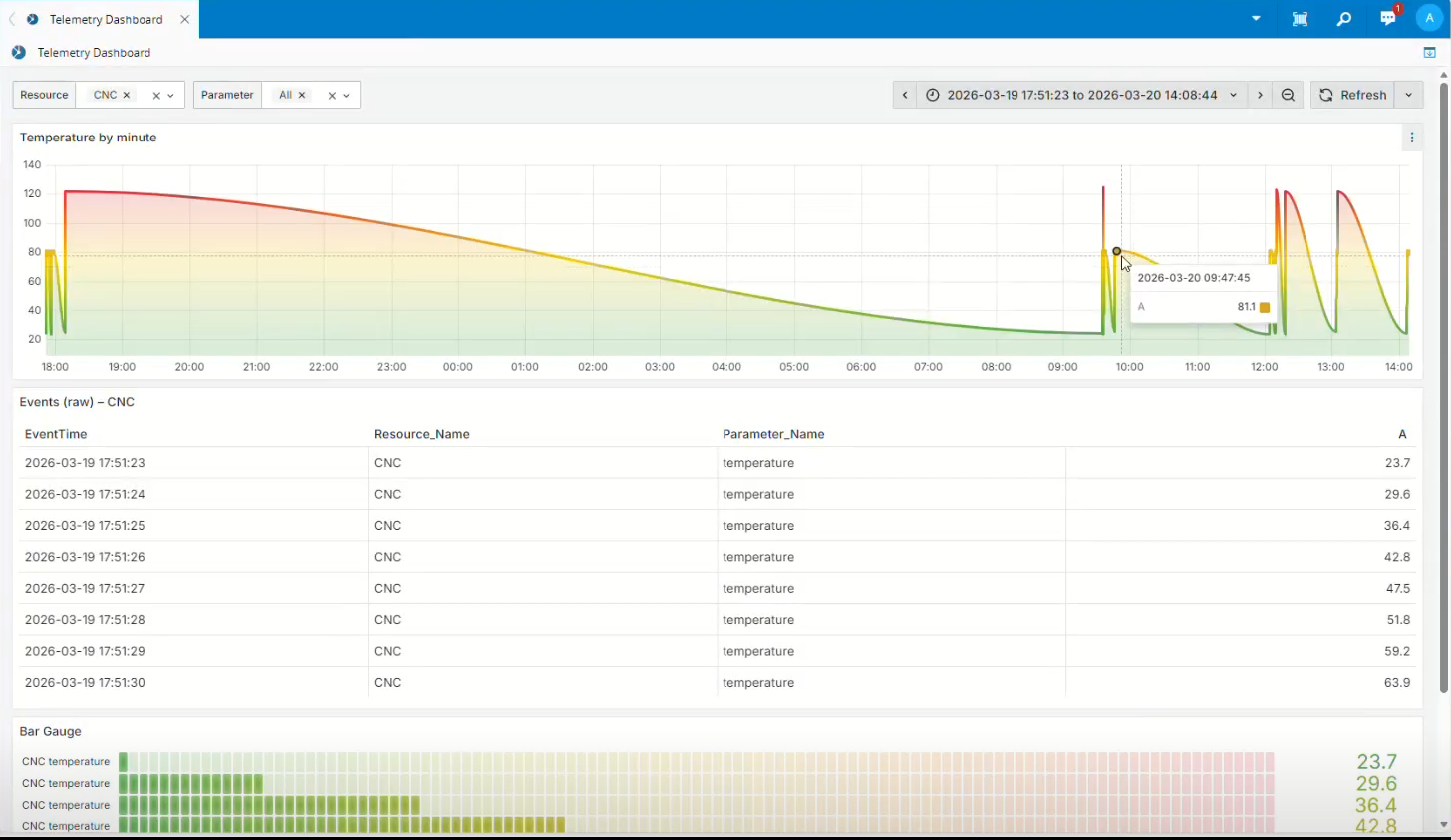
Each data point published through PostTelemetry is stored in the Data Platform. By inspecting the PostTelemetry dataset, you can view these values in the Data Folder, already enriched with the contextual information provided by MES and explicitly implemented in the Status Workflow.
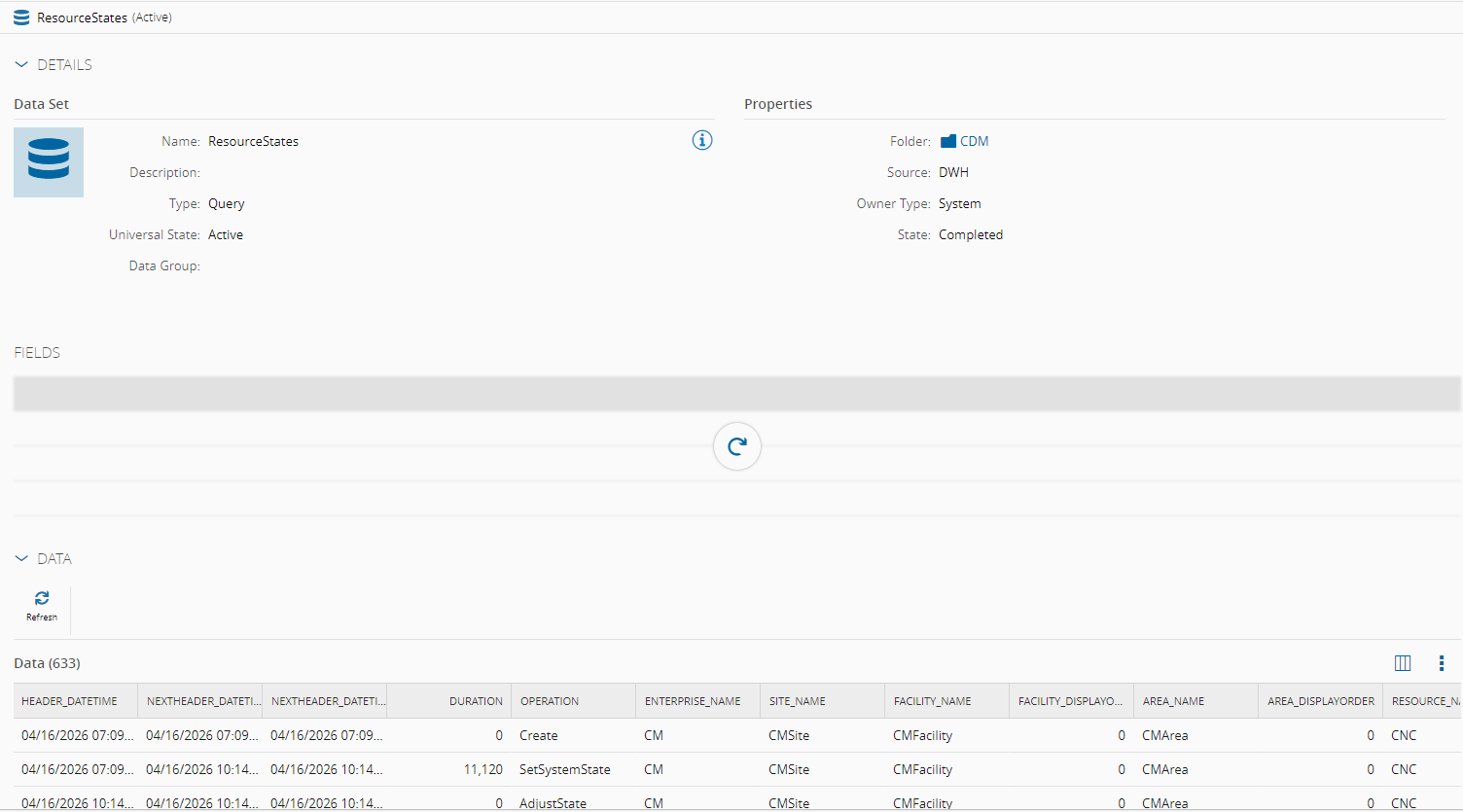
The status changes from the machine were also sent to the Data Platform data lake.
For each change in the Resource Status the following happens:

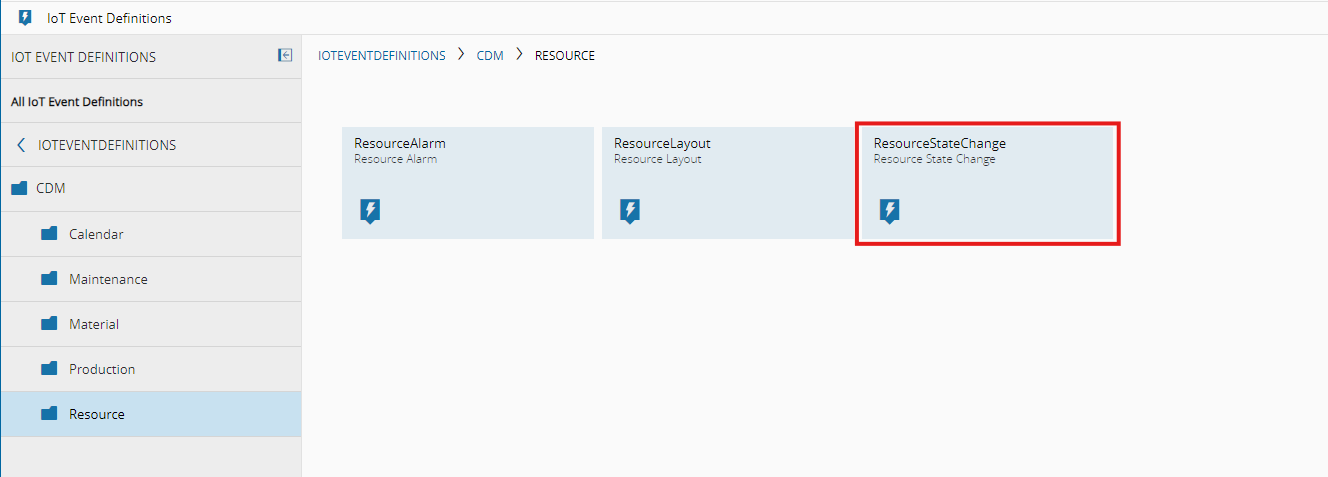
The CDM IoT Event ResourceStateChange is triggered:
And a new record is saved to the correspondent CDM DataSet :
Both datasets can be explored in several ways: as Dashboards in Grafana, as reports in Stimulsoft, or consumed externally as an OData data source in tools like Power BI or Excel, or even used to train machine learning models.
OOB UNS Integration
To generate the UNS topics, MES uses a special type of workflow designed specifically for the Data Platform. These workflows are triggered differently: instead of being invoked by a standard event, they listen to an IoT Event. When that event is raised, the workflow executes the corresponding logic within the context of the data that triggered it.
As previously explained, a Change Status operation raises the ResourceStateChange IoT Event. This means that if this IoT Event is configured as the trigger for a Data Platform workflow, the associated logic will be executed automatically.
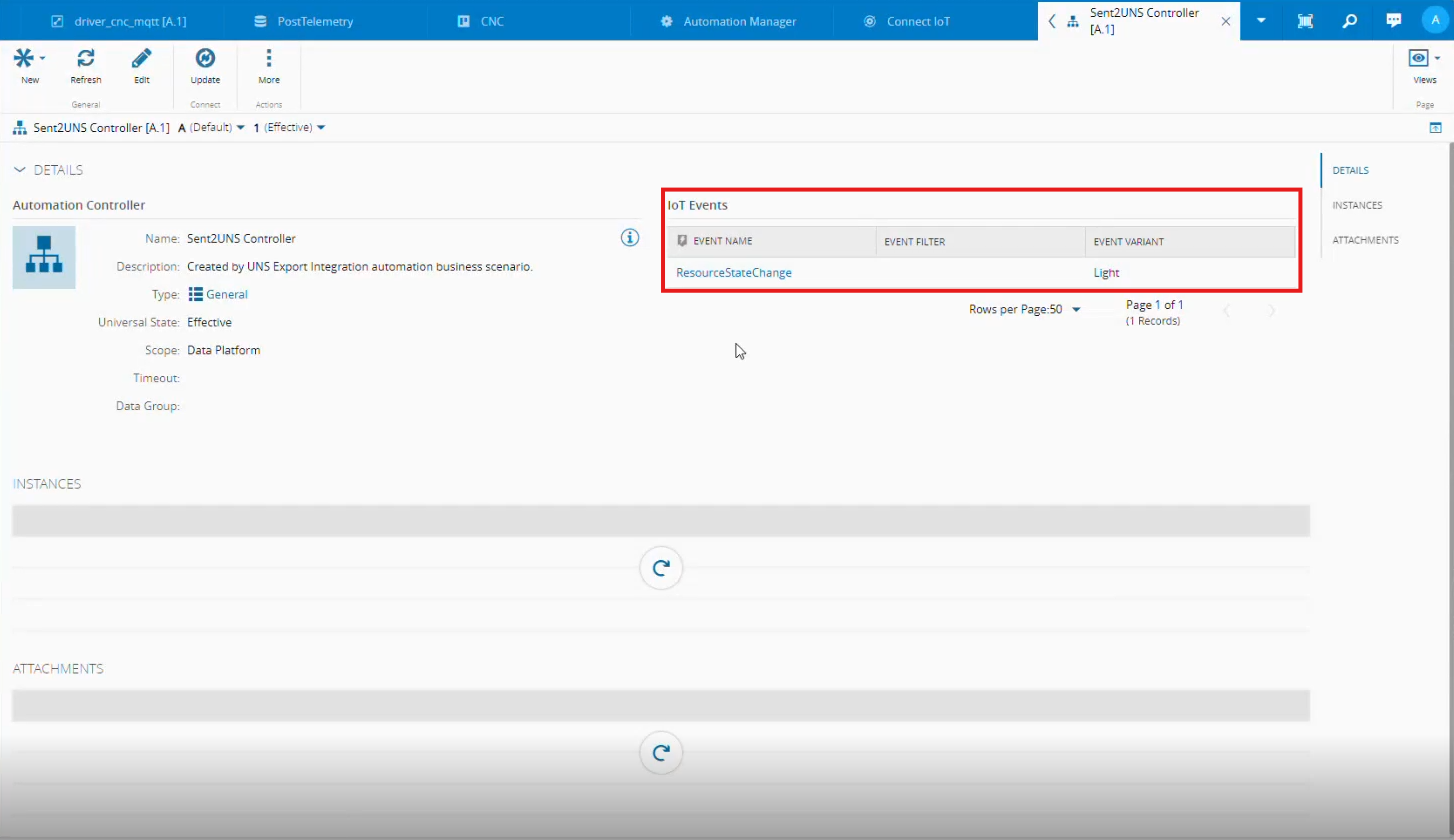
What we need to construct the UNS topic is simply to extract the Resource from the context and then derive the remaining ISA‑95 levels required for the topic structure.
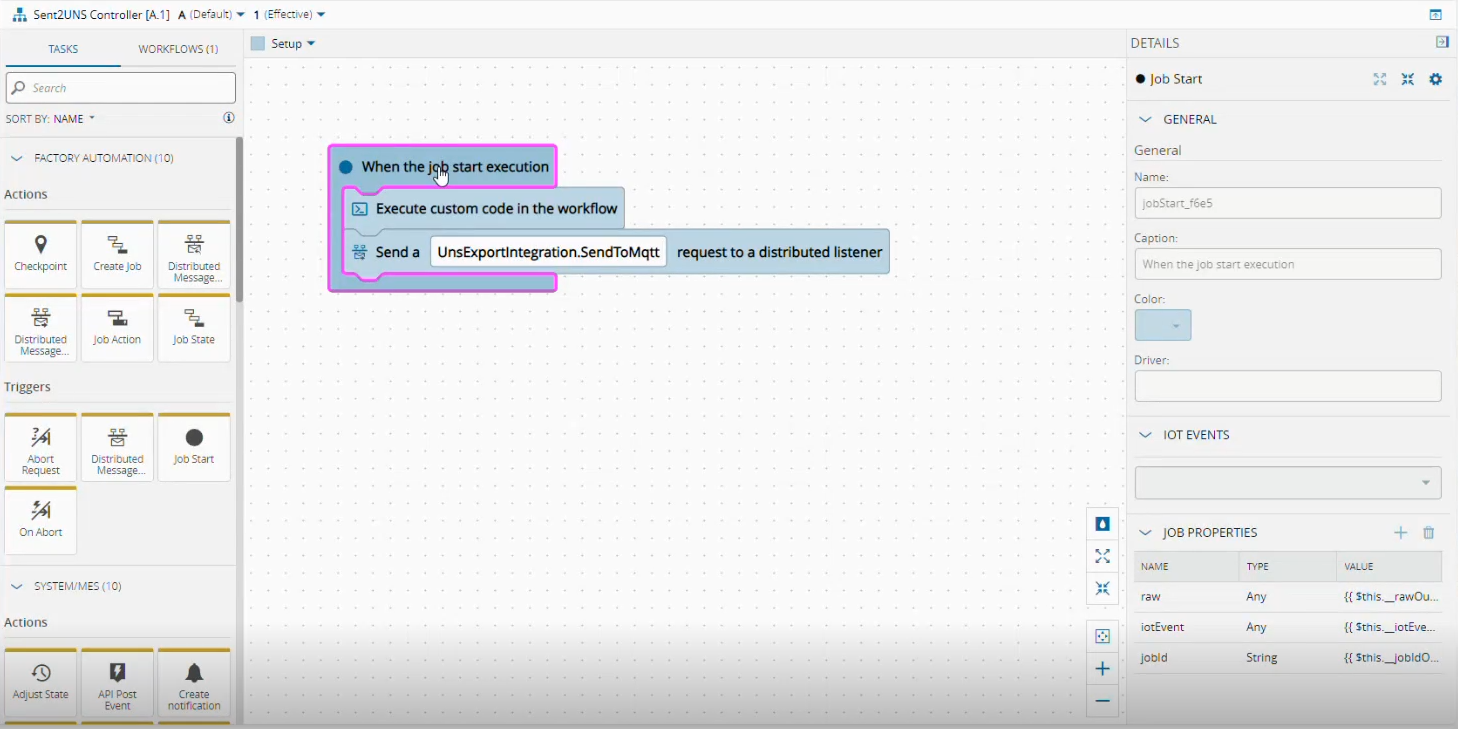
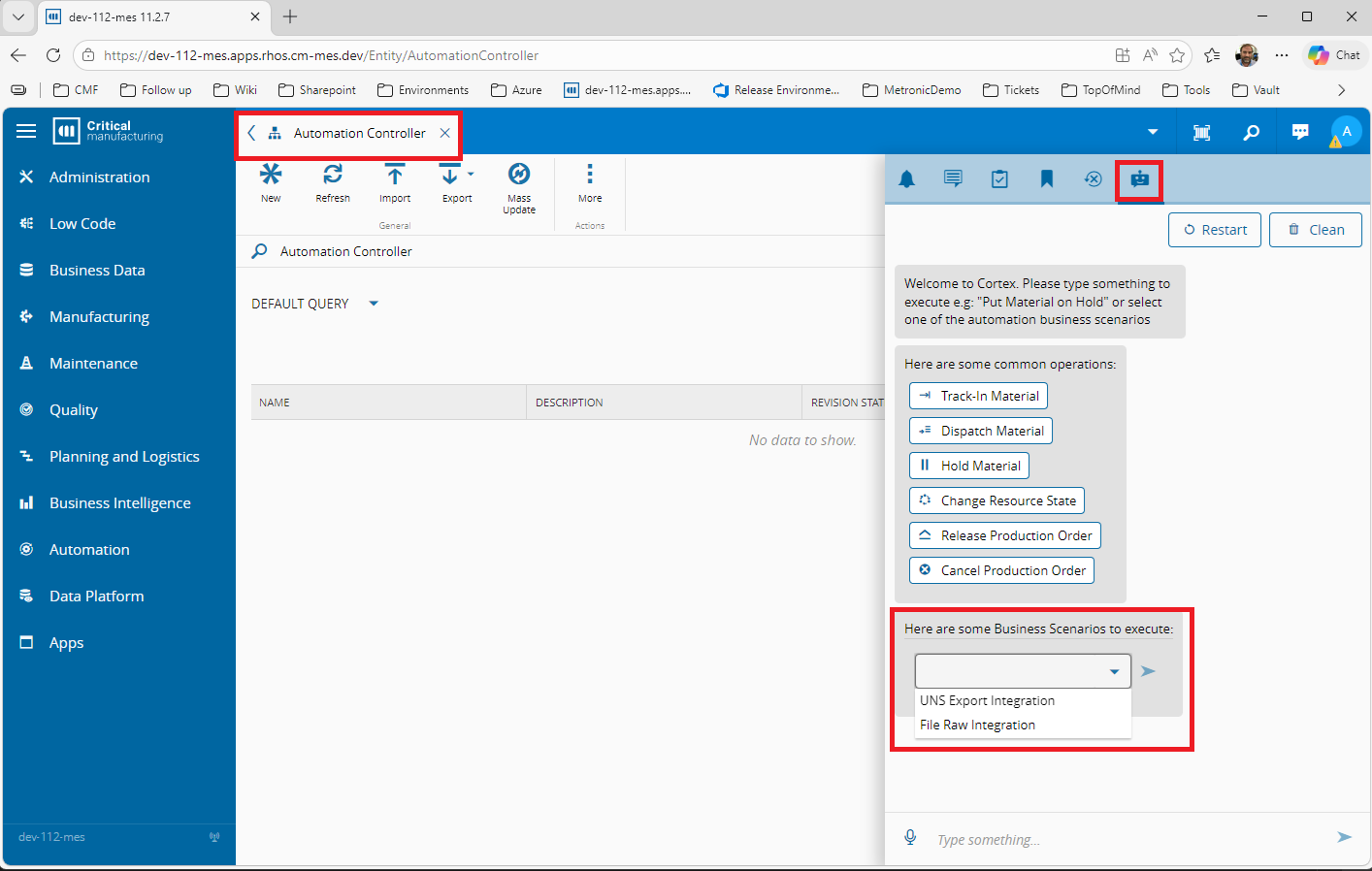
But you don’t need to worry about designing this workflow yourself — the transformation into a UNS topic is provided out of the box. With the Automation Controller window open the Cortex will guide design the right logic.
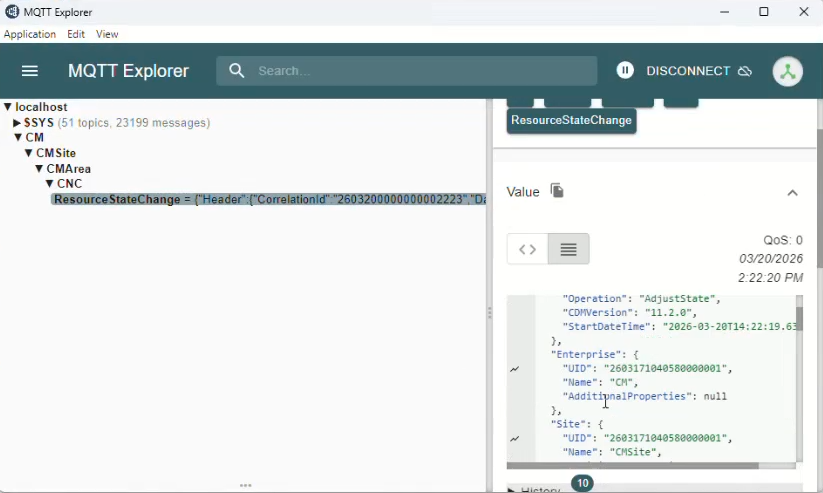
With all set the topic is published in the configured MQTT Broker with the ISA-95 tree-structured, with the value enriched with all the context MES has associated with the event.
But you don’t need to worry about designing this workflow yourself — the transformation into a UNS topic is provided out of the box. With the Automation Controller window open, Business Scenario guides you through the design.
Customized Automation Task Libraries
One last destination is missing before we conclude our journey: the possibility to extend Connect IoT with complementary capabilities to enrich the pipeline even further. The perfect example is the ability to send notifications to Discord.
This kind of extensibility is possible using the Automation Task Libraries.
In any customization project, under the /Cmf.Custom.IoT/Cmf.Custom.IoT.Packages directory where the cmfpackage.json resides, run the command
cmf new iot tasklibrary
A new package is created. Under the package directory run the command to create your task:
cmf new iot task
At least an input parameter named message and two output parameters called success and error to provide feedback are necessary. Also a setting called webhookUrl to configure the webhook URL should be defined too.
After answering a few questions, the scaffold for the Task is created and ready to be customized:
The project tree should be something like this:
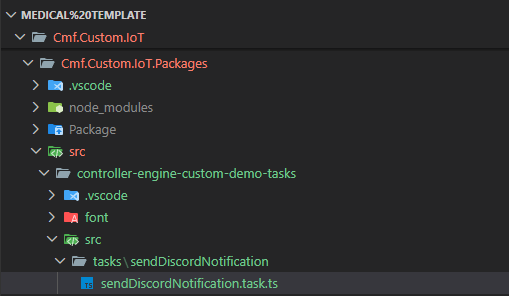
All the magic happens in the method OnChange of our task, that will make a POST to the Web hook of your discord server.
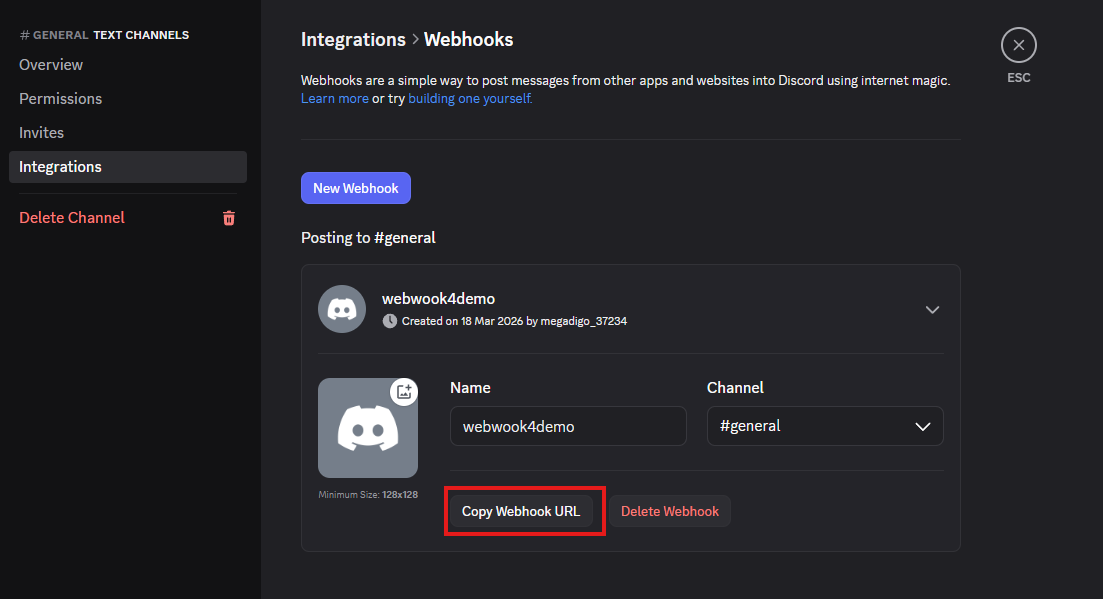
To obtain the webhook, navigate to your Discord Server and under Settings/Integrations/Webhooks, you can copy the value:
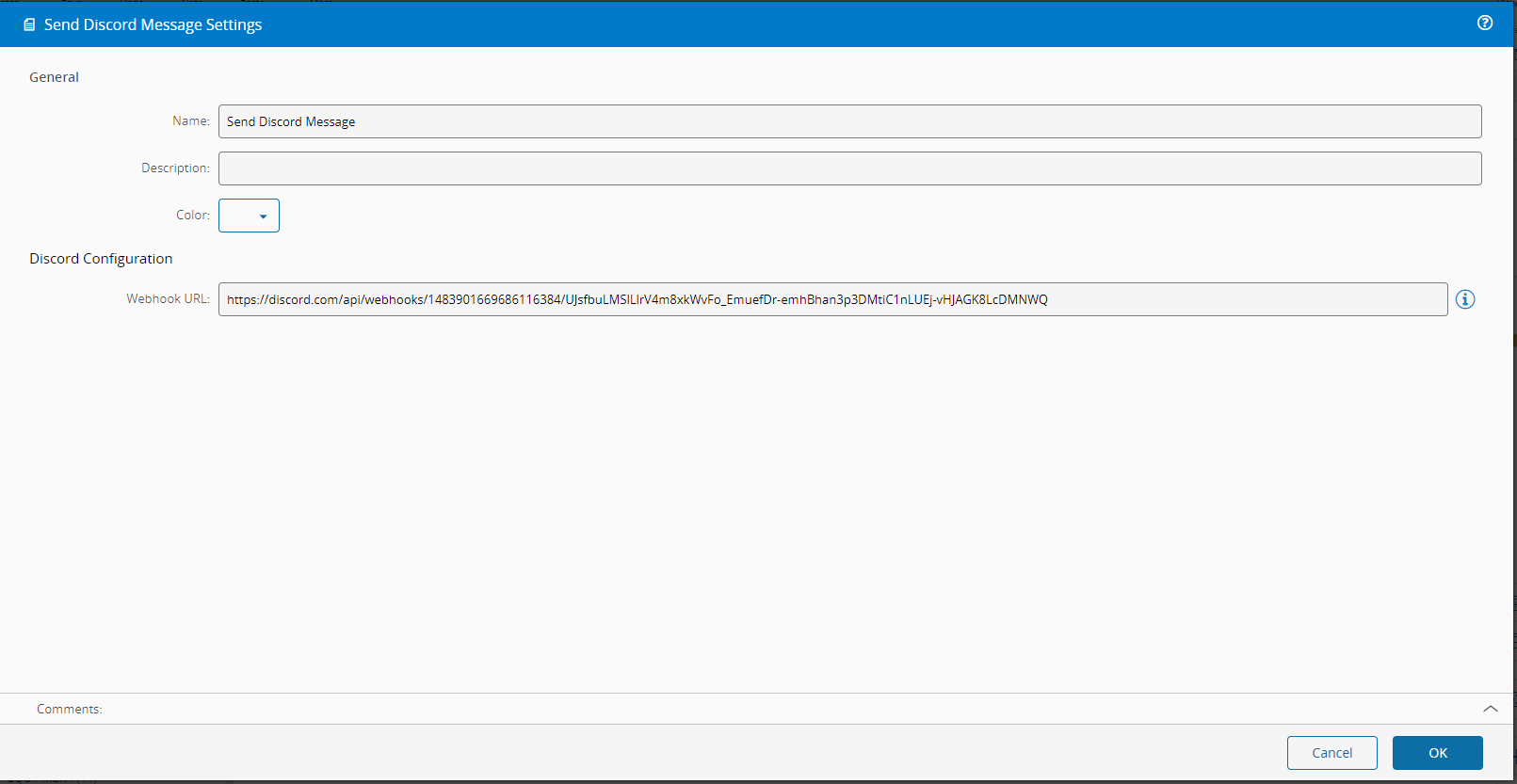
The value should be pasted later in the Send to Discord Settings page:
The complete code for the task is this:
import { Task, System, TaskBase } from "@criticalmanufacturing/connect-iot-controller-engine";
import * as https from "https";
import * as http from "http";
import { URL } from "url";

/** Default values for settings */
export const SETTINGS_DEFAULTS: SendDiscordMessageSettings = {
	webhookUrl: "",
};

/**
 * @whatItDoes
 *
 * Sends a message to a Discord channel via a configured webhook URL.
 *
 * @howToUse
 *
 * Configure the `webhookUrl` setting with your Discord webhook URL.
 * Connect a string value to the `message` input and trigger `activate`.
 *
 * ### Inputs
 * * `any`    : **activate** - Activate the task
 * * `string` : **message**  - The message content to send to Discord
 *
 * ### Outputs
 *
 * * `bool`  : **success** - Triggered when the message is sent successfully
 * * `Error` : **error**   - Triggered when the task failed for some reason
 *
 * ### Settings
 * See {@see SendDiscordMessageSettings}
 */
@Task.Task()
export class SendDiscordMessageTask extends TaskBase implements SendDiscordMessageSettings {

    /** **Inputs** */
    /** Message to send to the Discord channel */
    public message: string = "";

    /** **Outputs** */

    /** Properties Settings */
    /** Discord webhook URL */
    webhookUrl: string;

    /**
     * When one or more input values is changed this will be triggered,
     * @param changes Task changes
     */
    public override async onChanges(changes: Task.Changes): Promise<void> {
        if (changes["activate"]) {
            // Reset activate to allow re-triggering without value change
            this.activate = undefined;

            try {
                await this._sendDiscordMessage(this.webhookUrl, this.message);
                this._logger.info(`SendDiscordMessage: Message sent successfully to Discord: ${this.message}`);
                this.success.emit(true);
            } catch (error) {
                this._logger.error(`SendDiscordMessage: Failed to send message: ${error}`);
                this.error.emit(error);
            }
        }
    }

    /** Sends a POST request to the Discord webhook URL with the given message */
    private _sendDiscordMessage(webhookUrl: string, message: string): Promise<void> {
        return new Promise((resolve, reject) => {
            const body = JSON.stringify({ content: message });
            const parsedUrl = new URL(webhookUrl);
            const options = {
                hostname: parsedUrl.hostname,
                path: parsedUrl.pathname + parsedUrl.search,
                method: "POST",
                headers: {
                    "Content-Type": "application/json",
                    "Content-Length": Buffer.byteLength(body),
                },
            };

            const transport = parsedUrl.protocol === "https:" ? https : http;
            const req = transport.request(options, (res) => {
                if (res.statusCode && res.statusCode >= 200 && res.statusCode < 300) {
                    resolve();
                } else {
                    reject(new Error(`Discord API responded with status ${res.statusCode}`));
                }
                res.resume();
            });

            req.on("error", reject);
            req.write(body);
            req.end();
        });
    }

    /** Right after settings are loaded, create the needed dynamic outputs. */
    public override async onBeforeInit(): Promise<void> {
    }

    /** Initialize this task, register any event handler, etc */
    public override async onInit(): Promise<void> {
        this.sanitizeSettings(SETTINGS_DEFAULTS);
    }

    /** Cleanup internal data, unregister any event handler, etc */
    public override async onDestroy(): Promise<void> {
    }
}

/** SendDiscordMessage Settings object */
export interface SendDiscordMessageSettings extends System.TaskDefaultSettings {
    /** Discord webhook URL */
    webhookUrl: string;
}
To prepare the package to be imported to MES, run in the package directory the following commands:
# Install dependencies
npm install

# Build
npm run build

# Pack into .tgz
npm pack
In MES navigate to the Automation Repository and add your new Package.
Finally in your workflow we can add our new task to send a Discord Message:
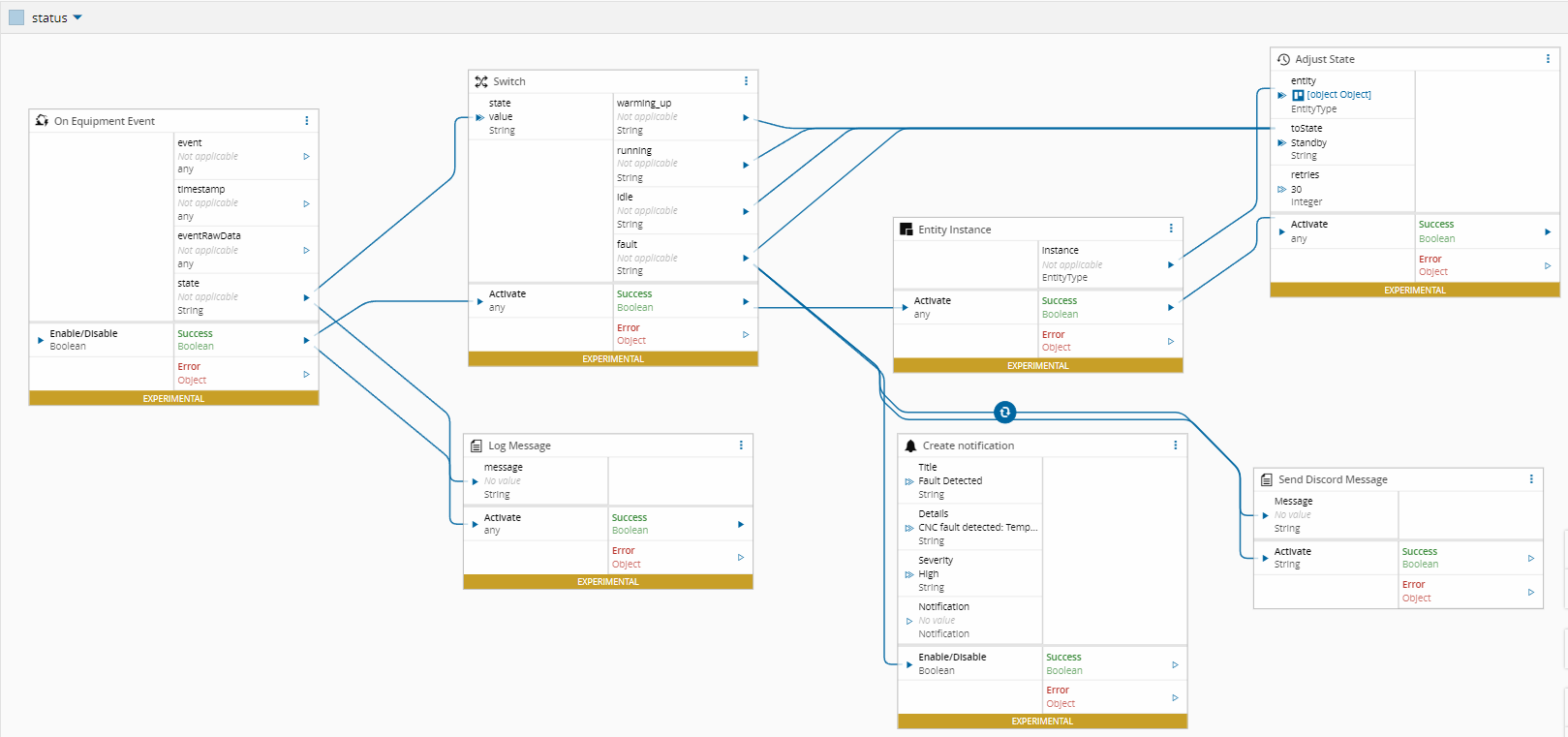
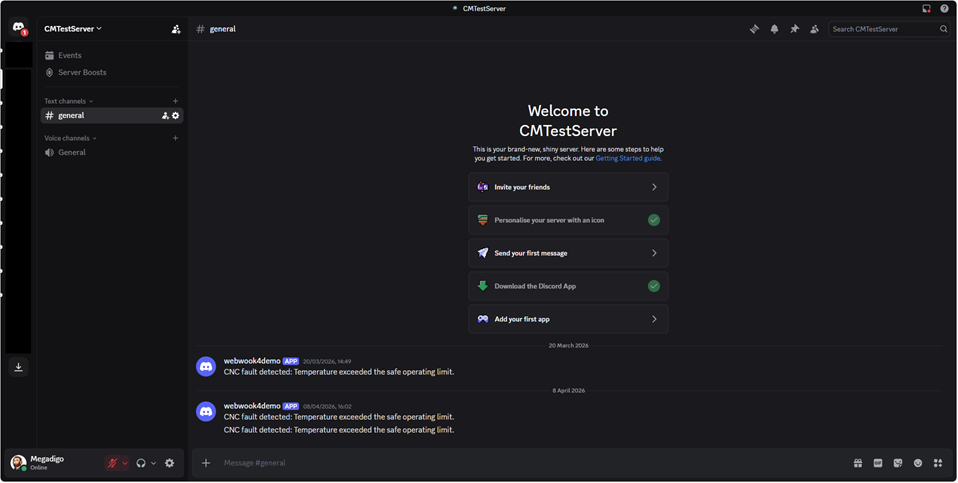
Now MES also send a message to a Discord Server channel when the machine enter in fault.
More details on how to implement customized tasks can be found in the documentation
For more detailed information on creating and implementing custom Automation Task Libraries, refer to the Customization Task Library.
Conclusion
As any passionate voyager will tell you, the best part of any journey isn’t the destination, but the path you take to get there. And we’ve seen just how much richer that path becomes when MES is on board. This journey, from raw MQTT data to MES enriched UNS topics highlights the true power of integrating equipment directly into MES. We’ve shown also how a simple simulator can approximate a near‑real data pipeline prepared to captures real‑time equipment data and enriches them with contextual information ready to be used in dashboards, reporting, and even model training.
Author
Hello, my name is Rodrigo Cordeiro. I’m passionate about machine integration, automation and transforming industrial data into clear, useful, decision‑ready insights.
You can reach me on LinkedIn
Skills: ConnectIoT | Data Analyst | Data Scientist